> ## Documentation Index
> Fetch the complete documentation index at: https://tensorfuse.io/docs/llms.txt
> Use this file to discover all available pages before exploring further.
# Reducing GPU Cold Start Time when using vLLM
export const AuthorBio = ({name, role, imageSrc}) => ;
September 1, 2025
## Understanding Cold Starts
When a deployment experiences a traffic spike, it needs to scale up by launching new instances. The delay between a new container being created and it becoming ready to serve traffic is known as the "cold start time." Minimizing this delay is essential for maintaining a responsive and scalable application.
For all examples in this post, we'll be using the `meta-llama/Llama-3.1-8B-Instruct` model running on `L40S` GPUs to provide concrete performance numbers.
## What happens during a cold start?
During a cold start, a series of sequential events occur. At a high level, it looks like this:
1. A new instance is created.
2. Model Loading
1. The model is downloaded into storage.
2. The model weights are loaded into GPU memory.
3. Torch.compile
1. Dynamo bytecode transformation
2. Graph compilation
4. Graph capture
5. Init Engine
## Optimizing the vLLM Workflow in Kubernetes
Kubernetes deployments are ephemeral, meaning each new pod starts from a clean slate. This can be inefficient for ML models, as many time-consuming initialization steps are repeated unnecessarily. By identifying and caching the outputs of these steps, we can dramatically reduce startup times.
Let's break down the process layer by layer to see where we can introduce optimizations.
### 1. Model Loading
#### Model Downloading
First, the model's weights must be available on the instance's local storage. You have two primary options:
1. **Download from Hugging Face on startup:**
* **Pros:** No additional infrastructure cost.
* **Cons:** Slow and unreliable. Download speed is limited by the node's network bandwidth and is dependent on Hugging Face's availability.
2. **Cache the model in a volume:**
* **Pros:** Much faster and more reliable, especially for instances with lower network bandwidth. Eliminates dependency on Hugging Face during scaling.
* **Cons:** Incurs storage and data transfer costs.
The storage cost is `$0.30/GB-month` and the data transfer cost is `$0.03/GB`. For example, caching a 16GB model that cold starts 40 times a month would cost approximately **\$24**.
A good rule of thumb is to download the model directly if your instance has an assured bandwidth of 10 Gbps or more. For larger models on high-bandwidth GPUs like the H100 (which can have 100 Gbps), downloading is often faster and more cost-effective. Please refer to [GPU Architecture Reference](#gpu-architecture-reference) at the bottom to find bandwidth of your GPU.
Be cautious with advertised bandwidths. If it says "up to X Gbps," your actual speeds may be lower depending on availability.
#### Weight Loading
After the model is downloaded, its weights must be loaded into GPU memory. This process can be a significant bottleneck. You can optimize this step by using specialized loaders via the `load_format` parameter in vLLM, including extensions like `fastsafetensors` or `run-ai`. You can find the list of supported formats in the [vLLM documentation](https://docs.vllm.ai/en/latest/cli/serve.html#loadconfig).
We currently do not support `fastsafetensors`
### 2. Torch.compile
`torch.compile` is a just-in-time (JIT) compiler that dramatically speeds up model execution at runtime. However, this performance comes at the cost of an initial compilation step that takes about **52 seconds** for our example model.
Fortunately, `torch.compile` includes a built-in caching system. In a Kubernetes environment, you can persist this cache by using a shared volume. The first pod will perform the compilation and save the cache, making it instantly available to all subsequent pods.
### 3. Graph Capture
To minimize kernel launch overhead, vLLM uses CUDA Graphs to capture the entire model execution flow. By default, this process captures a wide range of batch sizes and takes approximately **54 seconds**.
You can significantly reduce this time by tailoring the graph capture to your specific request patterns. For example, if your service primarily handles smaller batches, you can instruct vLLM to only capture graphs for those sizes.
```sh theme={null}
--cuda-graph-sizes 1,2,4,8,16,24,32,64
```
This simple change drops the capture time from **54 seconds** to just **7 seconds**.
Limiting captured graph sizes also saves a lot VRAM and reduces the time taken for graph capture.
Be aware that improper fine-tuning of graph sizes may lead to a reduction in throughput if requests fall outside the captured range.
### 4. Init Engine
The final step is initializing the vLLM engine, which involves loading the model, compiled kernels, and captured graphs. This process also benefits from its own caching layers, like the `flashinfer` cache.
## Case Study: Putting It All Together
Let's see what this looks like in practice.
### The Baseline: Before Optimization
Here is the initial cold start time for our Llama 3.1 8B model, with each step running from scratch:
| Step | Time Taken |
| ------------------------------ | ---------- |
| Model download | 61 seconds |
| Weight loading | 33 seconds |
| Dynamo bytecode transformation | 10 seconds |
| Graph compilation | 42 seconds |
| Graph capture | 54 seconds |
| Init engine and imports | 94 seconds |
**Total Time**: 294 seconds (4 minutes, 54 seconds)
### The Solution: Caching and Optimization
We can dramatically improve this by implementing two key changes:
1. **Use a cached volume:** We'll use Tensorkube to mount a persistent volume at `/root/.cache`. This will cache the model download, `torch.compile` results, and other initialization artifacts.
2. **Optimize graph capture:** We'll limit the CUDA graph capture to the batch sizes relevant to our workload (`1, 2, 4, 8, 16, 24, 32, 64`).
Here is the Tensorkube configuration:
```deployment.yaml theme={null}
volumes:
- name:
type: efs
mount_path: /root/.cache
```
```sh theme={null}
tensorkube deploy --config deployment.yaml
```
### The Result: After Optimization
With these changes, the cold start performance is drastically improved:
| Step | Time Taken |
| ------------------------------ | ---------- |
| Model download | 0 seconds |
| Weight loading | 18 seconds |
| Dynamo bytecode transformation | 10 seconds |
| Graph compilation | 13 seconds |
| Graph capture | 7 seconds |
| Init engine and imports | 34 seconds |
**Total Time**: 82 seconds (1 minute, 22 seconds)
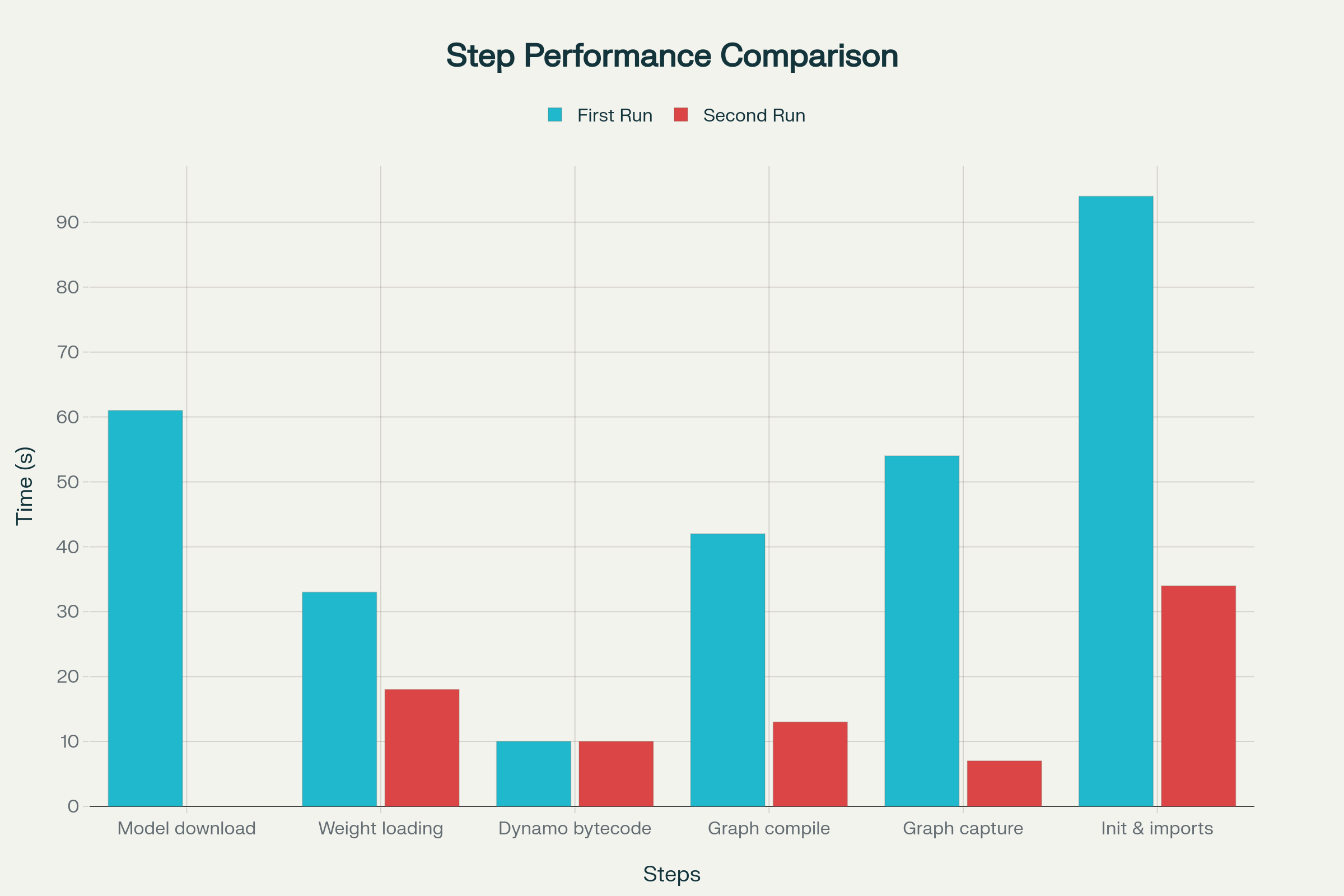 By caching the model and optimizing graph capture, we reduced the cold start time by over 70%, from 294 seconds down to 82 seconds.
## Practical Implementation: Dockerfiles & Configuration
Now that we've seen the impact of these optimizations, let's look at how to implement them in practice.
### Choosing Your Strategy: To Cache or Not To Cache?
The decision to cache your model on a volume versus downloading it on startup depends on a trade-off between cost, reliability, and performance.
**You should cache your model when:**
* **Reliability is critical.** Caching eliminates a dependency on external services like Hugging Face, which could be unavailable.
* **Your instance has limited network bandwidth.** For GPUs without guaranteed high-speed networking (e.g., "up to 20 Gbps"), a cached volume will almost always be faster.
* **You are using a relatively small model.** For smaller models, the monthly storage cost is often negligible compared to the performance gains.
**You should download the model on startup when:**
* **Cost is a primary concern.** Downloading on demand avoids storage costs.
* **Your instance has guaranteed high-speed networking.** Machines with 15-25 Gbps or more of *guaranteed* bandwidth can often download models faster than they can read from a network-attached volume.
**You should always cache vLLM artifacts** like compiled graphs and the engine cache. These are small, so the storage cost is minimal, and caching them provides a significant performance boost.
### Example Dockerfiles
Here are two example Dockerfiles that showcase both approaches.
We are mounting our efs volume at `/root/.cache` in both these cases.
```Dockerfile Cache-model theme={null}
FROM vllm/vllm-openai:v0.10.1
RUN pip install huggingface_hub[hf_transfer] vllm[runai]
ENV HF_HUB_ENABLE_HF_TRANSFER=1
ENV HF_HUB_DISABLE_XET=1
ENV VLLM_ALLOW_RUNTIME_LORA_UPDATING=True
# Use V1 engine for improved throughput
ENV VLLM_USE_V1=1
# only set if you are using a single gpu
ENV CUDA_VISIBLE_DEVICES=0
# depends on the gpu you are using
ENV TORCH_CUDA_ARCH_LIST='8.9'
EXPOSE 80
ENTRYPOINT ["python3", "-m", "vllm.entrypoints.openai.api_server", \
"--model", "meta-llama/Llama-3.1-8B", \
"--dtype", "bfloat16", \
"--max-model-len", "2048", \
"--enable-lora", \
"--max-cpu-loras", "64", \
"--max-loras", "5", \
"--max-lora-rank", "32", \
"--port", "80", \
"--cuda-graph-sizes", "1", "2", "4", "8", "16","24", "32", "64", "128"]
```
```Dockerfile Direct Model Download theme={null}
# This Dockerfile is optimized for downloading the model as fast as possible on startup
FROM vllm/vllm-openai:v0.10.1
RUN pip install huggingface_hub[hf_xet] vllm[runai]
# Use the high-performance Xet repository client for Hugging Face
ENV HF_XET_HIGH_PERFORMANCE=true
# Creates 1024 parallel threads to download
ENV HF_XET_NUM_CONCURRENT_RANGE_GETS=1024
# Disables chunk cache for faster download speeds
ENV HF_XET_CHUNK_CACHE_SIZE_BYTES=0
ENV VLLM_ALLOW_RUNTIME_LORA_UPDATING=True
# Use V1 engine for improved throughput
ENV VLLM_USE_V1=1
# Depends on the gpu you are using
ENV TORCH_CUDA_ARCH_LIST='8.9'
# Store the downloaded model files in /tmp so they do not get cached
# across pod restarts, but still benefit from vLLM's internal caching.
RUN mkdir -p /tmp
ENV HF_HUB_CACHE=/tmp
# Use RunAI Streamer for improved loading throughput
ENV RUNAI_STREAMER_CONCURRENCY=64
ENV RUNAI_STREAMER_CHUNK_BYTESIZE=134217728
# 64 concurrent threads of 128 MB each
# make sure you have enough memory (adjust this as needed)
EXPOSE 80
ENTRYPOINT ["python3", "-m", "vllm.entrypoints.openai.api_server", \
"--model", "meta-llama/Llama-3.1-8B", \
"--dtype", "bfloat16", \
"--max-model-len", "2048", \
"--enable-lora", \
"--max-cpu-loras", "64", \
"--max-loras", "5", \
"--max-lora-rank", "32", \
"--port", "80", \
"--load-format", "runai_streamer", \
"--cuda-graph-sizes", "1", "2", "4", "8", "16","24", "32"]
```
### GPU Architecture Reference
You need to set the `TORCH_CUDA_ARCH_LIST` environment variable to match the compute capability of your target GPU. This ensures `torch.compile` generates the most optimized code. Here’s a quick reference for supported AWS instances:
| GPU type | AWS Instance Type | `TORCH_CUDA_ARCH_LIST` | AWS Link |
| -------- | ----------------- | ---------------------- | --------------------------------------------------------------------------------------------------------- |
| V100 | p3 | 7.0 | [Link](https://aws.amazon.com/blogs/aws/new-amazon-ec2-instances-with-up-to-8-nvidia-tesla-v100-gpus-p3/) |
| A10G | g5 | 8.6 | [Link](https://aws.amazon.com/blogs/aws/new-ec2-instances-g5-with-nvidia-a10g-tensor-core-gpus/) |
| T4 | g4 | 7.5 | [Link](https://aws.amazon.com/blogs/aws/now-available-ec2-instances-g4-with-nvidia-t4-tensor-core-gpus/) |
| L4 | g6 | 8.9 | [Link](https://aws.amazon.com/ec2/instance-types/g6/) |
| L40S | g6e | 8.9 | [Link](https://aws.amazon.com/ec2/instance-types/g6e/) |
| A100 | p4 | 8.0 | [Link](https://aws.amazon.com/ec2/instance-types/p4/) |
| H100 | p5 | 9.0 | [Link](https://aws.amazon.com/ec2/instance-types/p5/) |
If you are having trouble finding the `Network Bandwidth` for your GPU, please scroll down until you find the `Product details` table and scroll to the right.
## Have Questions?
By systematically addressing each stage of the startup process, you can transform a multi-minute cold start into a matter of seconds.
If you have any questions, join our community on [Slack](https://join.slack.com/t/tensorfusecommunity/shared_invite/zt-30r6ik3dz-Rf7nS76vWKOu6DoKh5Cs5w)—we're happy to help.
By caching the model and optimizing graph capture, we reduced the cold start time by over 70%, from 294 seconds down to 82 seconds.
## Practical Implementation: Dockerfiles & Configuration
Now that we've seen the impact of these optimizations, let's look at how to implement them in practice.
### Choosing Your Strategy: To Cache or Not To Cache?
The decision to cache your model on a volume versus downloading it on startup depends on a trade-off between cost, reliability, and performance.
**You should cache your model when:**
* **Reliability is critical.** Caching eliminates a dependency on external services like Hugging Face, which could be unavailable.
* **Your instance has limited network bandwidth.** For GPUs without guaranteed high-speed networking (e.g., "up to 20 Gbps"), a cached volume will almost always be faster.
* **You are using a relatively small model.** For smaller models, the monthly storage cost is often negligible compared to the performance gains.
**You should download the model on startup when:**
* **Cost is a primary concern.** Downloading on demand avoids storage costs.
* **Your instance has guaranteed high-speed networking.** Machines with 15-25 Gbps or more of *guaranteed* bandwidth can often download models faster than they can read from a network-attached volume.
**You should always cache vLLM artifacts** like compiled graphs and the engine cache. These are small, so the storage cost is minimal, and caching them provides a significant performance boost.
### Example Dockerfiles
Here are two example Dockerfiles that showcase both approaches.
We are mounting our efs volume at `/root/.cache` in both these cases.
```Dockerfile Cache-model theme={null}
FROM vllm/vllm-openai:v0.10.1
RUN pip install huggingface_hub[hf_transfer] vllm[runai]
ENV HF_HUB_ENABLE_HF_TRANSFER=1
ENV HF_HUB_DISABLE_XET=1
ENV VLLM_ALLOW_RUNTIME_LORA_UPDATING=True
# Use V1 engine for improved throughput
ENV VLLM_USE_V1=1
# only set if you are using a single gpu
ENV CUDA_VISIBLE_DEVICES=0
# depends on the gpu you are using
ENV TORCH_CUDA_ARCH_LIST='8.9'
EXPOSE 80
ENTRYPOINT ["python3", "-m", "vllm.entrypoints.openai.api_server", \
"--model", "meta-llama/Llama-3.1-8B", \
"--dtype", "bfloat16", \
"--max-model-len", "2048", \
"--enable-lora", \
"--max-cpu-loras", "64", \
"--max-loras", "5", \
"--max-lora-rank", "32", \
"--port", "80", \
"--cuda-graph-sizes", "1", "2", "4", "8", "16","24", "32", "64", "128"]
```
```Dockerfile Direct Model Download theme={null}
# This Dockerfile is optimized for downloading the model as fast as possible on startup
FROM vllm/vllm-openai:v0.10.1
RUN pip install huggingface_hub[hf_xet] vllm[runai]
# Use the high-performance Xet repository client for Hugging Face
ENV HF_XET_HIGH_PERFORMANCE=true
# Creates 1024 parallel threads to download
ENV HF_XET_NUM_CONCURRENT_RANGE_GETS=1024
# Disables chunk cache for faster download speeds
ENV HF_XET_CHUNK_CACHE_SIZE_BYTES=0
ENV VLLM_ALLOW_RUNTIME_LORA_UPDATING=True
# Use V1 engine for improved throughput
ENV VLLM_USE_V1=1
# Depends on the gpu you are using
ENV TORCH_CUDA_ARCH_LIST='8.9'
# Store the downloaded model files in /tmp so they do not get cached
# across pod restarts, but still benefit from vLLM's internal caching.
RUN mkdir -p /tmp
ENV HF_HUB_CACHE=/tmp
# Use RunAI Streamer for improved loading throughput
ENV RUNAI_STREAMER_CONCURRENCY=64
ENV RUNAI_STREAMER_CHUNK_BYTESIZE=134217728
# 64 concurrent threads of 128 MB each
# make sure you have enough memory (adjust this as needed)
EXPOSE 80
ENTRYPOINT ["python3", "-m", "vllm.entrypoints.openai.api_server", \
"--model", "meta-llama/Llama-3.1-8B", \
"--dtype", "bfloat16", \
"--max-model-len", "2048", \
"--enable-lora", \
"--max-cpu-loras", "64", \
"--max-loras", "5", \
"--max-lora-rank", "32", \
"--port", "80", \
"--load-format", "runai_streamer", \
"--cuda-graph-sizes", "1", "2", "4", "8", "16","24", "32"]
```
### GPU Architecture Reference
You need to set the `TORCH_CUDA_ARCH_LIST` environment variable to match the compute capability of your target GPU. This ensures `torch.compile` generates the most optimized code. Here’s a quick reference for supported AWS instances:
| GPU type | AWS Instance Type | `TORCH_CUDA_ARCH_LIST` | AWS Link |
| -------- | ----------------- | ---------------------- | --------------------------------------------------------------------------------------------------------- |
| V100 | p3 | 7.0 | [Link](https://aws.amazon.com/blogs/aws/new-amazon-ec2-instances-with-up-to-8-nvidia-tesla-v100-gpus-p3/) |
| A10G | g5 | 8.6 | [Link](https://aws.amazon.com/blogs/aws/new-ec2-instances-g5-with-nvidia-a10g-tensor-core-gpus/) |
| T4 | g4 | 7.5 | [Link](https://aws.amazon.com/blogs/aws/now-available-ec2-instances-g4-with-nvidia-t4-tensor-core-gpus/) |
| L4 | g6 | 8.9 | [Link](https://aws.amazon.com/ec2/instance-types/g6/) |
| L40S | g6e | 8.9 | [Link](https://aws.amazon.com/ec2/instance-types/g6e/) |
| A100 | p4 | 8.0 | [Link](https://aws.amazon.com/ec2/instance-types/p4/) |
| H100 | p5 | 9.0 | [Link](https://aws.amazon.com/ec2/instance-types/p5/) |
If you are having trouble finding the `Network Bandwidth` for your GPU, please scroll down until you find the `Product details` table and scroll to the right.
## Have Questions?
By systematically addressing each stage of the startup process, you can transform a multi-minute cold start into a matter of seconds.
If you have any questions, join our community on [Slack](https://join.slack.com/t/tensorfusecommunity/shared_invite/zt-30r6ik3dz-Rf7nS76vWKOu6DoKh5Cs5w)—we're happy to help.